




Manual typing of text from the image is a difficult process. It consumes time and is prone to typing errors. But, you can solve this issue by using solutions like image-to-text converter, ChatGPT, OCR, etc. They extract text from an image and convert it into an editable and searchable format. Many solutions are available online, but finding the right one is difficult. Here, in this blog, we have shared all the possible methods you can follow to extract text from photos or images.
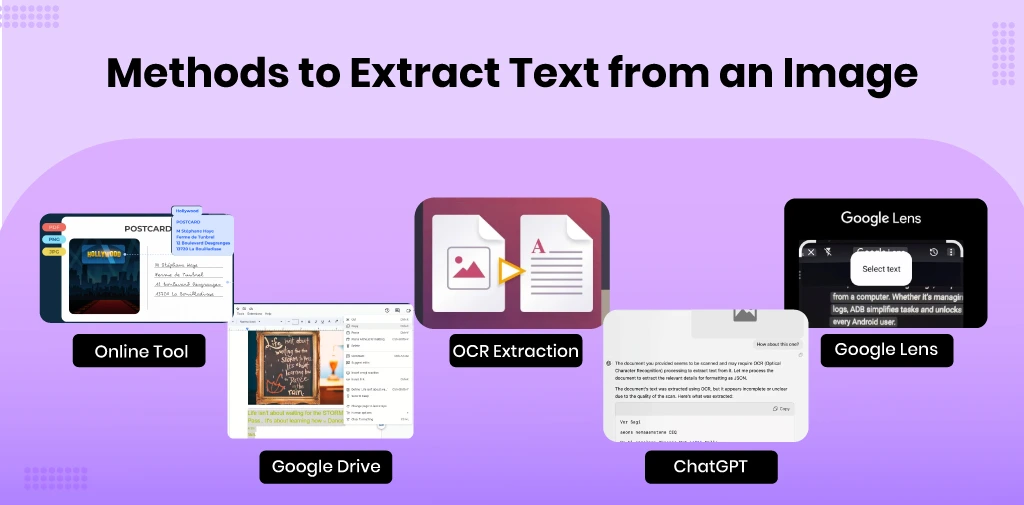
Methods to Extract Text from an Image
Follow the step-by-step guide to easily extract text from the image.
Method 1: Online Image-to-Text Conversion Tools
There are many converter tools available that you can use to convert images to text. Follow these steps to extract text from the photo or image. Generally, image-to-text conversion tools have same workflow where you just need to visit the website, upload the file (JPG, PNG, or other format), click on convert button to get extracted text.
Automate your KYC Process & reduce Fraud!
We have helped 200+ companies in reducing Fraud by 95%
Method 2:Optical Character Recognition (OCR)
OCR, or optical character recognition, converts scanned images, handwritten documents, or printed text into machine-readable text.
Follow these steps to extract text from the image via OCR
- Search OCR.
- Upload the image in the OCR.
- Get text.
Method 3: AI Tool to extract text from an Image
Considering AI for extracting text from the image can be used for small files. You can extract data according to your prompt. You just need to upload the image and make a proper prompt to get the extracted text. Remember, AI can hellucinate on larger files, so use specific tools made for the specific image to text extraction.
Method 4: Google Drive
To convert an image into text you need to convert the image to PDF to Google Doc.
- Upload your image or PDF to Google Drive.
- Upload the image in Google Drive from your device.
- Right-click on the image file.
- Select Open with Google Docs.
- Extracted text will appear in an editable format.
- Save and copy the document.
AI Image Converter for Businesses
Businesses handle different kinds of paper-based and digital documents. Sorting, categorizing, and extracting specific kinds of data from a large number of files is difficult. Businesses require a smart solution that is versatile and fits to their data extraction needs.
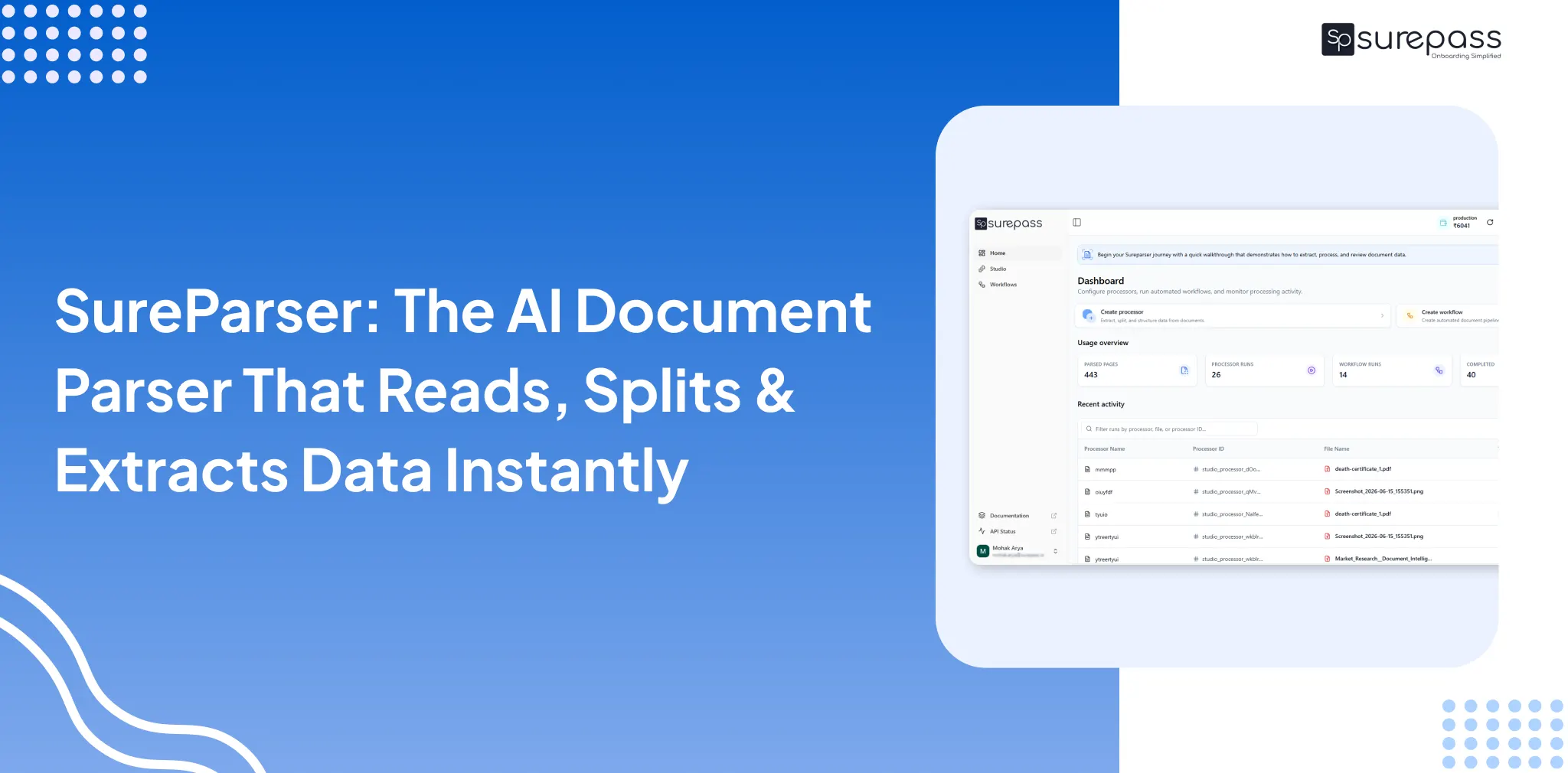
Sureparser is an AI Image to Text Converter solution for businesses that provides various features to automatically extract information from a bundle of documents with high accuracy and no hallucinations. Apart from that, it shares sensitive personal data to online tools can lead to data breaches that Sureparser removes.
Importance of Using an Image To Text Extractor
There are multiple benefits of using a tool for the extraction of text from images.
Digitizing printed documents: Extracting text from printed documents allows you to store them digitally. It makes it easy to store, manage and organise documents. Digital documents will remove the need for physical documents and declutter the space. Apart from this, digital documents are easy to find, where we need to flip pages to find something from the physical documents.
Saves Time: Suppose you want to add some text to an infographic, documents or a quote in your presentation. You need to type everything, which will consume a lot of time. On the other hand, with image-to-text conversion, you just need to scan, extract and copy data directly into your presentation. This will increase productivity and reduce the chances of errors.
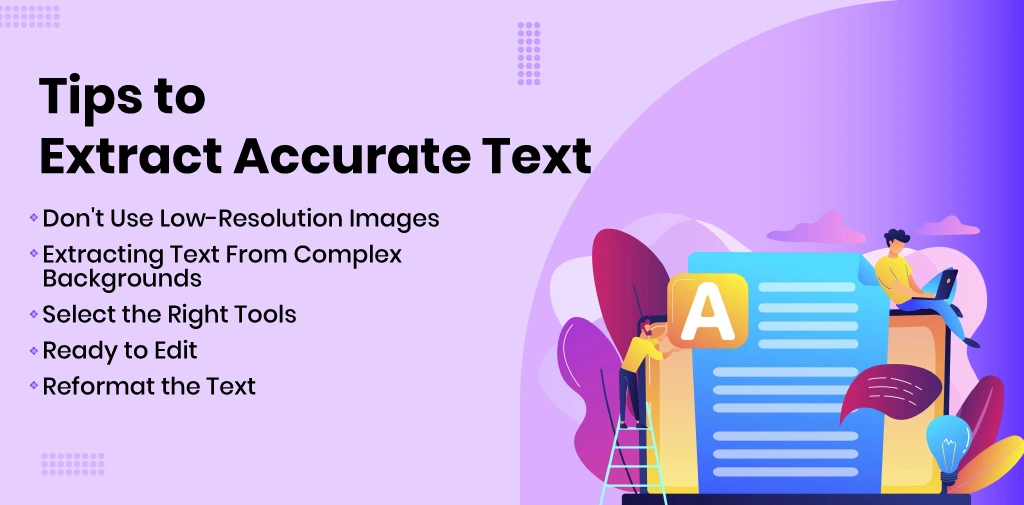
Tips to Extract Accurate Text
- Don’t Use Low-Resolution Images: Blurry or low-resolution images can make it difficult for OCR tools to recognise the text. To extract text accurately, use high-resolution images.
- Extracting Text From Complex Backgrounds: If the image has a complex background, you can crop the image to focus on the text. You can use image editing tools to reduce background noise.
- Select the Right Tools: If you have too large files, converting them to a PDF might be easier. Task image-to-text converters are useful for smaller tasks.
- Ready to edit: Even if you use tools, they are not perfect. That’s why you should choose the right tool for the use case. For example, businesses that have to extract data from a large volume of invoices. You should use tools that support bulk extractions.
- Reformat the Text: While using many tools, the text format got lost. You need to manually rearrange the text according to the layout.
Conclusion
If you want to extract text from an image, you can use solutions like image-to-text converter, AI playground, online OCR, ChatGPT, Google Drive, and more. They help in the easy extraction of data without manual typing errors and save time. You can follow the above step-by-step guide to use these tools. For individual purposes using a converter is great. However, for the business use cases where they have to extract text from images in bulk. You can use solution that offers bulk extraction such as AI Playground and OCR technology. To make your work even easier, you can use an AI presentation maker to instantly create professional and well-designed presentations using the extracted content. This boosts productivity and reduces the chances of errors.
After this: On the other hand, with image-to-text conversion, you just need to scan, extract and copy data directly into your presentation.
FAQs
Ques: How can I copy text directly from a picture?
Ans: Follow these steps to convert text directly from a picture.
- Upload the image on the image to the text converter or OCR.
- Click on the converter.
- Get text.
Ques: Can I extract text without installing software?
Ans: Yes, you can use online tools like image-to-text converter online tools and AI chatbots for extracting text from images.
Ques: Is it safe to upload images containing sensitive information to online OCR tools?
Ans: It depends on the tool’s privacy policy, security measures, and data retention practices. Before uploading sensitive documents, review the service’s data processing and storage practices.
Ques: Can I extract text from an image in a language other than English?
Ans: Yes, there are many smart AI image-to-text converter tools that offer this kind of service.
Ques: What should I check when choosing a document extraction tool?
Ans: Before choosing any tool, look for accuracy, data security, batch limit, output format, and pricing.
Automate your KYC Process & reduce Fraud!
We have helped 200+ companies in reducing Fraud by 95%